Qwen Image 3 AI Image Generator

Create product and campaign concepts with Qwen Image 3 in Video4. Use prompts or supported reference inputs and review output options for the selected provider.

(Optional)
24

Qwen Image 3 features

Qwen Image 3: generation and editing capabilities

Review supported inputs, output settings, and practical limits before using a draft.

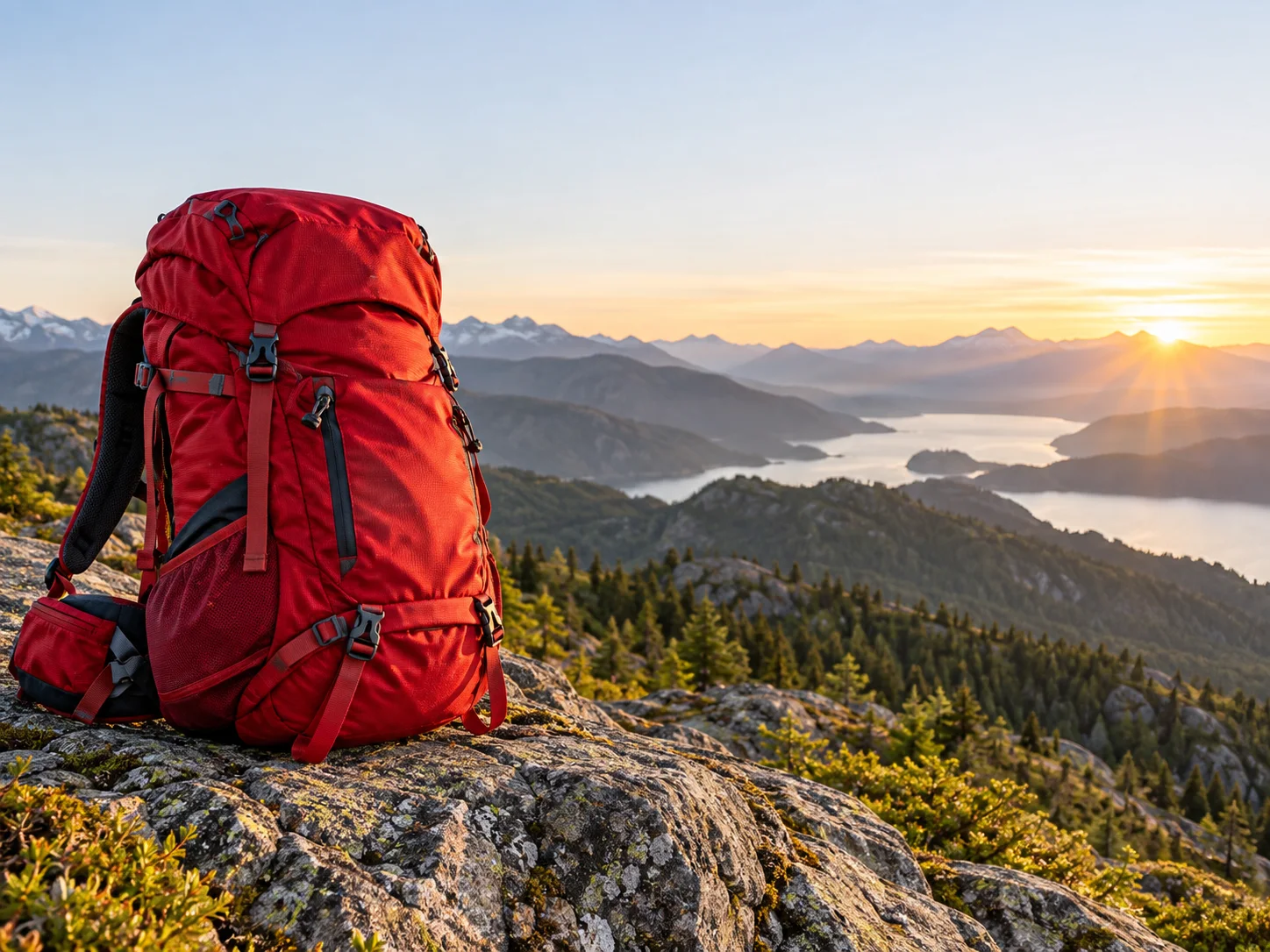
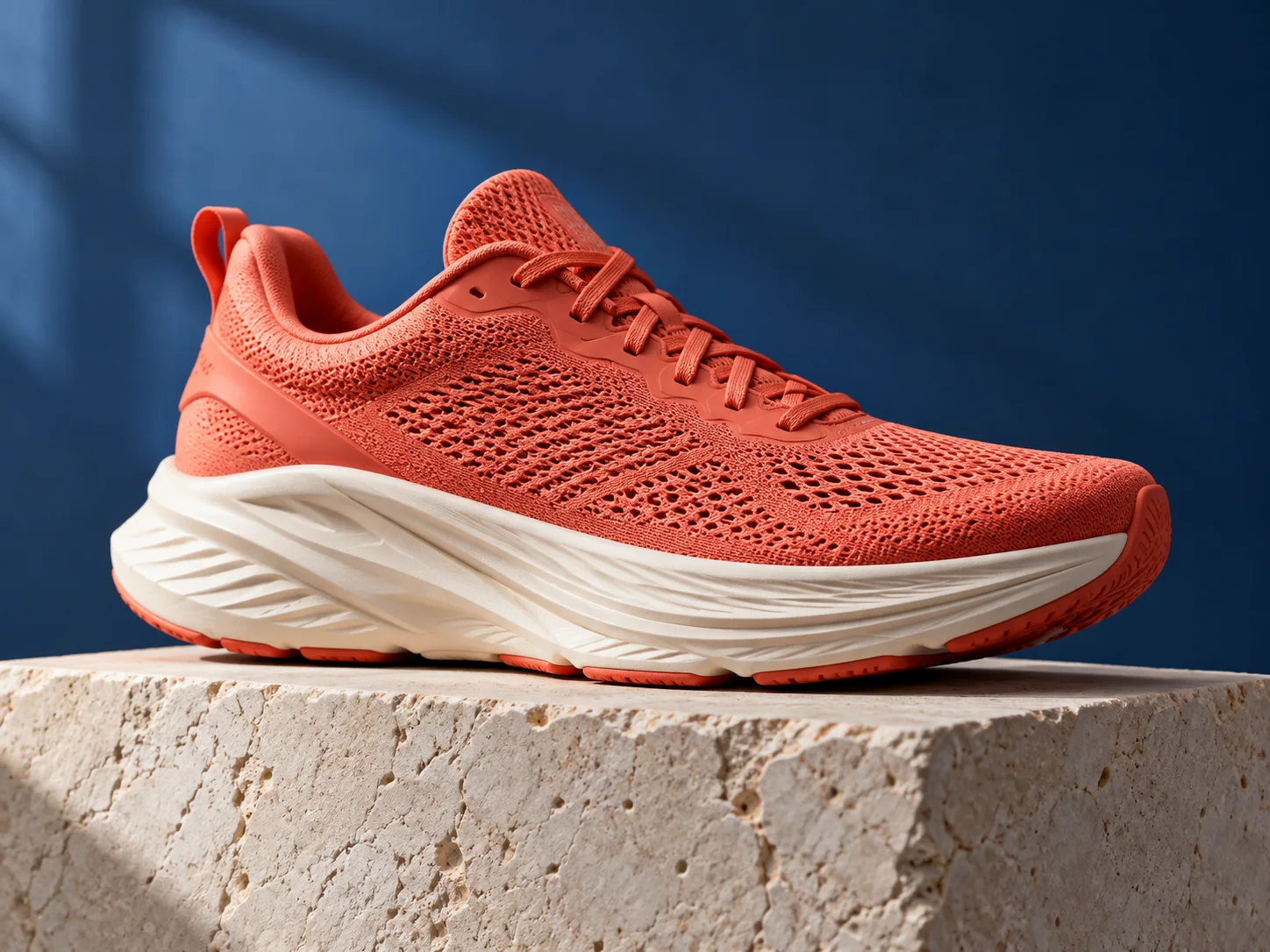
Illustrative concept for Qwen Image 3: qwen image 3 scene example
Original illustrative concept visual generated for this Qwen Image 3 page; it is not a verified model output.

Prompting

Qwen Image 3 image creation

Describe the subject, setting, composition, and lighting to create a new image with Qwen Image 3.

  • Product concepts, visual drafts, and edits guided by a small set of reference images.
  • Describe the focal subject, materials, layout, lighting, and any text to exclude. For an edit, separate the details to preserve from the requested changes.

The same ceramic lamp explored in warm and cool room treatments
Original illustrative concept visual generated for this Qwen Image 3 page; it is not a verified model output.

Reference editing

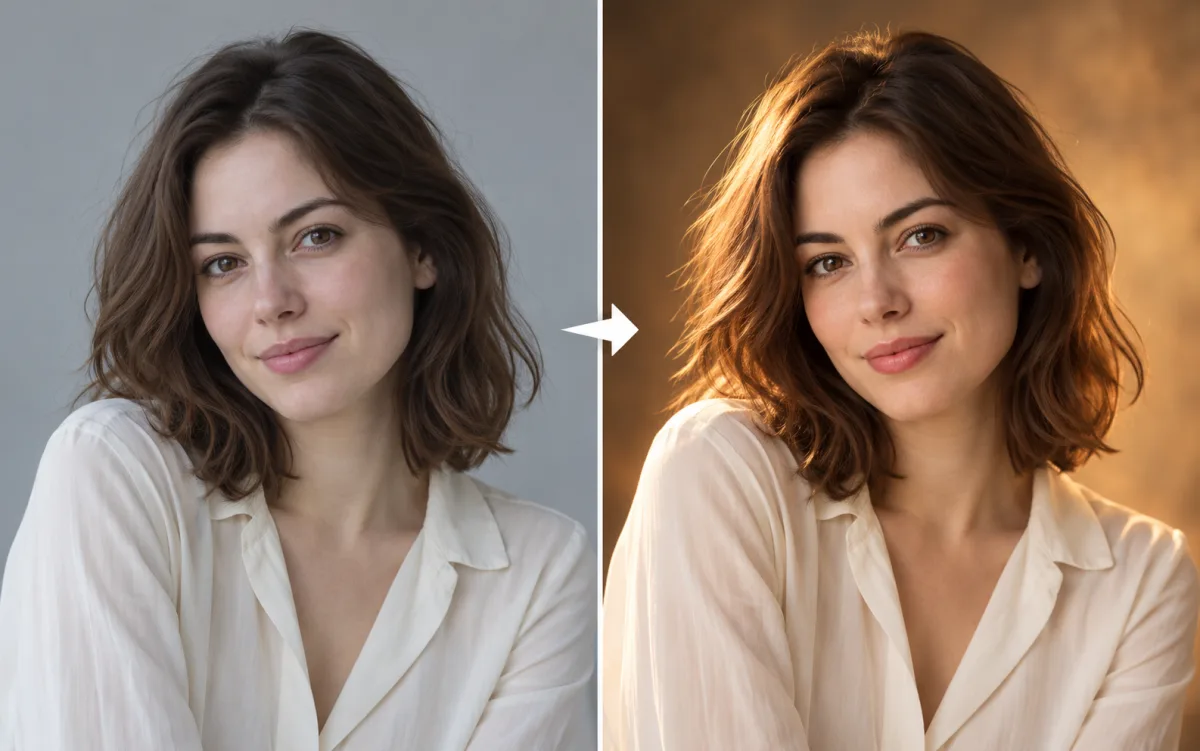
Guide edits with image references

For supported image-to-image requests, add up to three reference images and state which subject features to retain and which scene details to change. Reference availability and request fields can vary by provider. The model may reinterpret details, so review the result before using it in a finished asset.

  • Example edit: State which details to preserve and which parts to change, then inspect the output against the source image.
  • Video4 routes requests through the selected API provider, with KIE as the default. Model names and trademarks belong to their respective owners; this page describes the Video4 workflow and is not an official provider product page.
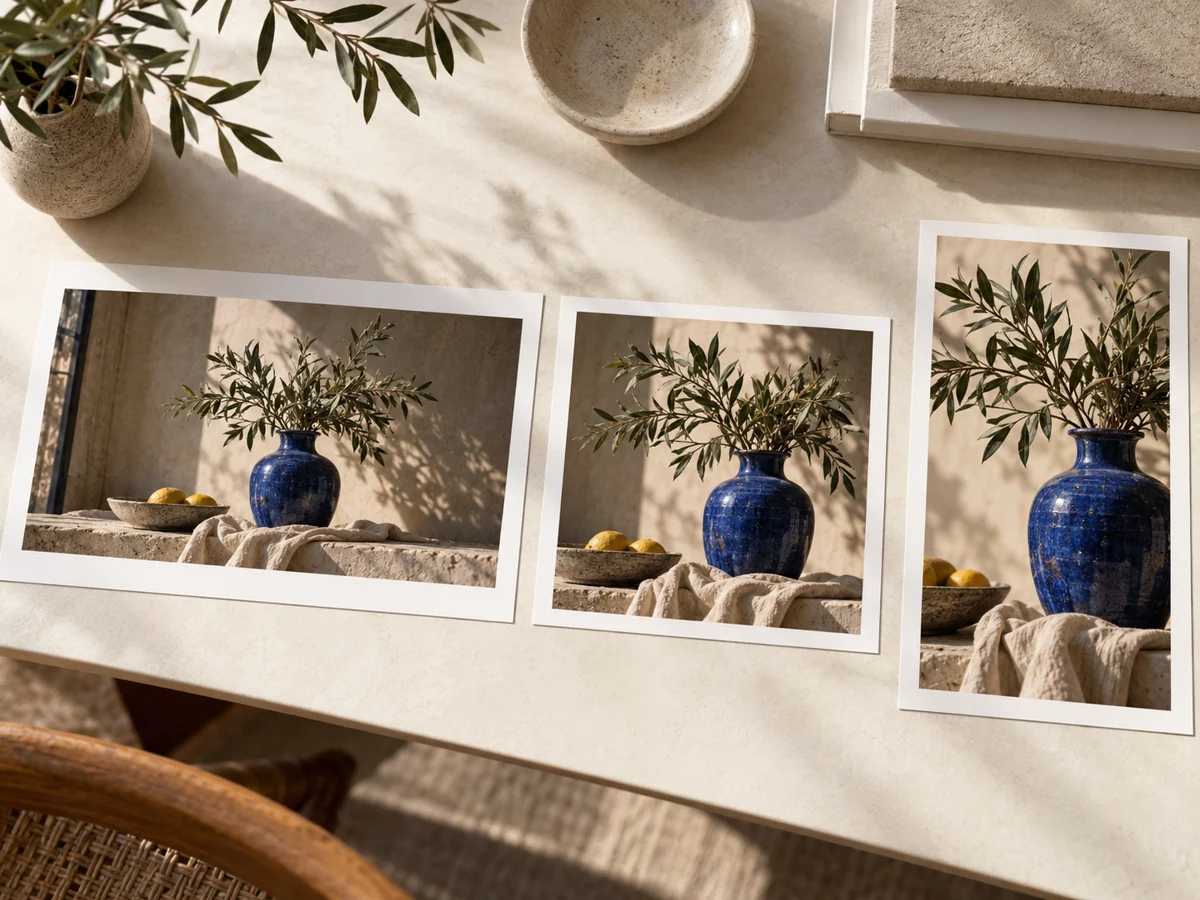
Landscape, square and portrait compositions of a blue ceramic vase
Original illustrative concept visual generated for this Qwen Image 3 page; it is not a verified model output.

Output settings

Choose supported output settings

With KIE selected, Qwen Image 3 supports prompt-to-image and image-to-image workflows with documented output sizing. fal, APIMart, and EvoLink use their own supported fields; the generator filters settings to the active provider.

  • With KIE selected, Qwen Image 3 supports prompt-to-image and image-to-image workflows with documented output sizing. fal, APIMart, and EvoLink use their own supported fields; the generator filters settings to the active provider.
  • Video4 connects Qwen Image 3 through KIE, fal, APIMart, and EvoLink. Available output controls vary by provider.
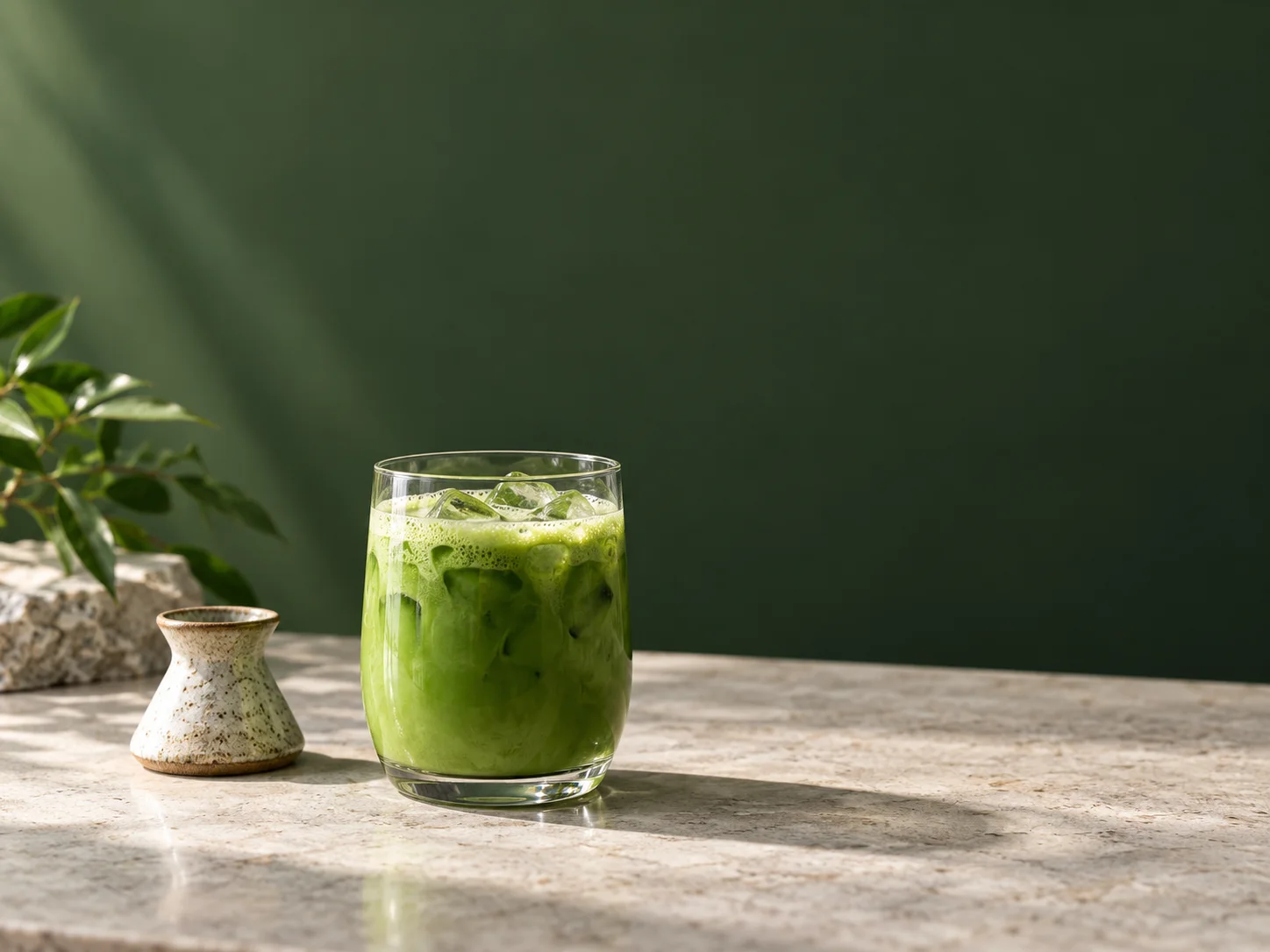
Matcha drink campaign concept with green tea and restrained studio styling
Original illustrative concept visual generated for this Qwen Image 3 page; it is not a verified model output.

Iteration

Refine the visual direction

Change one part of the prompt at a time to compare composition, color, lighting, or material choices across drafts.

  • Generated text, identity, materials, and fine details may differ from the prompt or source image. Review each output before publishing or using it in production.
  • Refine one visual decision at a time to make changes easier to evaluate.

From brief to reviewed image

How to use Qwen Image 3

Use a focused prompt for product concepts, visual drafts, and edits guided by a small set of reference images. and confirm the supported inputs before generation.

  1. 01

    Choose the model

    Open the image workspace with this model selected. It is suited to product concepts, visual drafts, and edits guided by a small set of reference images.

  2. 02

    Write a specific brief

    Describe the focal subject, materials, layout, lighting, and any text to exclude. For an edit, separate the details to preserve from the requested changes. Include the subject, composition, and visual details that matter to this image.

  3. 03

    Set output options

    With KIE selected, Qwen Image 3 supports prompt-to-image and image-to-image workflows with documented output sizing. fal, APIMart, and EvoLink use their own supported fields; the generator filters settings to the active provider. Review the available choices and credit estimate before submitting.

  4. 04

    Review and refine

    Generated text, identity, materials, and fine details may differ from the prompt or source image. Review each output before publishing or using it in production. Compare the draft with your goal, then refine one detail at a time.

Prompt examples

Prompt examples for Qwen Image 3

Adapted from the cited community prompt. Use these ideas as a starting point and check the selected model settings before generation.

Qwen Image 3 scene example

Design a clean matcha drink campaign concept: a clear glass with vivid green tea and a small ceramic whisk rest on a pale stone counter, soft side light, dark leaf-green backdrop, generous empty space above, no lettering or logos.

Describe the focal subject, materials, layout, lighting, and any text to exclude. For an edit, separate the details to preserve from the requested changes.

Adapted from a prompt by ᴍᴜʀᴘʜʏ in the NanoBanana Trending Prompts dataset by MeiGen.ai, licensed under CC BY 4.0.

Multi-Model Studio

Featured AI Models

Compare supported inputs and output settings, then open a model page with its generator ready to use.

Browse all models →
Task-Oriented Tools

Popular AI Tools

Explore focused image and video workflows. Review supported inputs, example briefs, and model settings on each tool page.

View all tools →

Video4 Plans & Pricing

Flexible monthly credits for high-speed AI video and image generation. Choose the perfect tier for creators, marketers, and studios with transparent pricing and full commercial usage.

Save 30%+

Basic

Start exploring AI images and videos

$29$19/month
$348$228 billed yearly54,000 credits/year

Auto-renews · Cancel anytime


Includes

  • Up to 47 videos/month
  • Up to 225 images/month
  • Access to all models
  • Watermark-free outputs
  • Files saved for 90 days
  • Standard support
  • Commercial use license included
How generation estimates work

Estimates use all monthly credits for either 5-second Seedance 2.0 Mini videos at 480p (95 credits each) or Nano Banana images at 1K (20 credits each). These are alternative budgets, not combined allowances. Other models, settings, and reference inputs use different credits. Annual plans receive their full annual credits upfront; monthly estimates show one twelfth of that allowance.


Most Popular
Save 40%+

Pro

For regular visual projects and campaigns

$49$29/month
$588$348 billed yearly114,000 credits/year

Auto-renews · Cancel anytime


Includes

  • Up to 100 videos/month
  • Up to 475 images/month
  • Access to all models
  • Watermark-free outputs
  • Files saved for 180 days
  • Faster generation speed
  • Priority support
  • Commercial use license included
How generation estimates work

Estimates use all monthly credits for either 5-second Seedance 2.0 Mini videos at 480p (95 credits each) or Nano Banana images at 1K (20 credits each). These are alternative budgets, not combined allowances. Other models, settings, and reference inputs use different credits. Annual plans receive their full annual credits upfront; monthly estimates show one twelfth of that allowance.

Best Value
Save 50%

Max

For frequent generation and larger projects

$99$49/month
$1,188$588 billed yearly240,000 credits/year

Auto-renews · Cancel anytime


Includes

  • Up to 210 videos/month
  • Up to 1,000 images/month
  • Access to all models
  • Watermark-free outputs
  • Files saved for 360 days
  • Faster generation speed
  • Priority support
  • Commercial use license included
How generation estimates work

Estimates use all monthly credits for either 5-second Seedance 2.0 Mini videos at 480p (95 credits each) or Nano Banana images at 1K (20 credits each). These are alternative budgets, not combined allowances. Other models, settings, and reference inputs use different credits. Annual plans receive their full annual credits upfront; monthly estimates show one twelfth of that allowance.

Pay safely and securely with

  • Visa
  • Mastercard
  • Link
  • Apple Pay
  • Google Pay
  • American Express
  • Discover
  • JCB
  • Diners Club

Available payment methods are shown at checkout and vary by region, device, and payment provider.

See why creators choose Video4

Loved by creators

Video4 transformed my creative workflow. The text-to-image quality with GPT-Image and FLUX is stunning, allowing me to iterate on client concept art in minutes rather than days.

Sarah Chen

Sarah Chen

From Amazon listing photos to short-form promotional videos, Video4 gives us studio-grade product visuals without expensive studio rentals. The commercial license gives us complete peace of mind.

David Park

David Park

Our viral engagement spiked after using Video4's video effects and motion templates. We can instantly apply trending visual effects to our brand videos and stand out on Instagram Reels.

Maya Patel

Maya Patel

The motion interpolation and prompt adherence in Video4 blow older video generation tools out of the water. Adding dynamic fluid motion to vector artwork has never been this effortless.

Alex Tremblay

Alex Tremblay

A/B testing ad variations used to take weeks of copywriting and graphic design. With Video4, we generate 20 targeted creative variations in an afternoon and double our ROAS.

Priya Sharma

Priya Sharma

Transforming twilight drone photographs into smooth, cinematic fly-through videos using Video4's image-to-video feature has helped our luxury real estate listings sell significantly faster.

Benjamin Hayes

Benjamin Hayes

Video4 brought my illustrated characters to life with charming, expressive animations. The ability to preserve visual art styles across images and video clips is truly unmatched.

Olivia Taylor

Olivia Taylor

Alibaba Cloud AI image model

Qwen Image 3 FAQ

Create images with Qwen Image 3

Start with qwen image 3 scene example, review the supported settings, and compare the generated image with your brief before using it.